The short version: GSC data in Node with zero dependencies
I needed to pull Google Search Console data into my blog's content pipeline. Every tutorial I found used the googleapis npm package — a 50MB+ dependency I didn't want. So I built it with just Node.js crypto and curl. Service account JWT auth, no OAuth flow, no external packages. The whole script is ~300 lines and runs in any Node.js environment, including restricted ones like Cloudflare Workers.
This post covers: setting up a GSC service account, implementing JWT authentication from scratch, querying the Search Analytics API, and the bugs I hit along the way.
Why Pull GSC Data Programmatically?
Google Search Console is great for looking at data manually. But if you want to:
- Track trends over time — compare this month vs last month automatically
- Feed data into your content pipeline — know which articles are gaining/losing traction
- Generate content recommendations — find queries you rank for but haven't written about
- Build automated reports — weekly/monthly performance summaries without opening a browser
...you need the API.
The GSC web UI shows you the data. The API lets you do things with it.
Auth Method: OAuth vs Service Account
Google offers two ways to authenticate with the GSC API:
| Method | How it works | Best for |
|---|---|---|
| OAuth 2.0 | User clicks "Authorize" in browser, gets a refresh token | Apps that act on behalf of a user |
| Service Account | Server-to-server auth using a JSON key file | Automation, CI/CD, scripts |
For my use case — a script that runs on a schedule to pull my own site's data — service account is the obvious choice. No browser interaction, no token refresh headaches, no user consent flow.
The tradeoff: you need to add the service account email as a user in GSC manually. It takes 30 seconds.
Step 1: Create a Service Account
- Go to Google Cloud Console
- Create a project (or use an existing one)
- Navigate to APIs & Services → Library
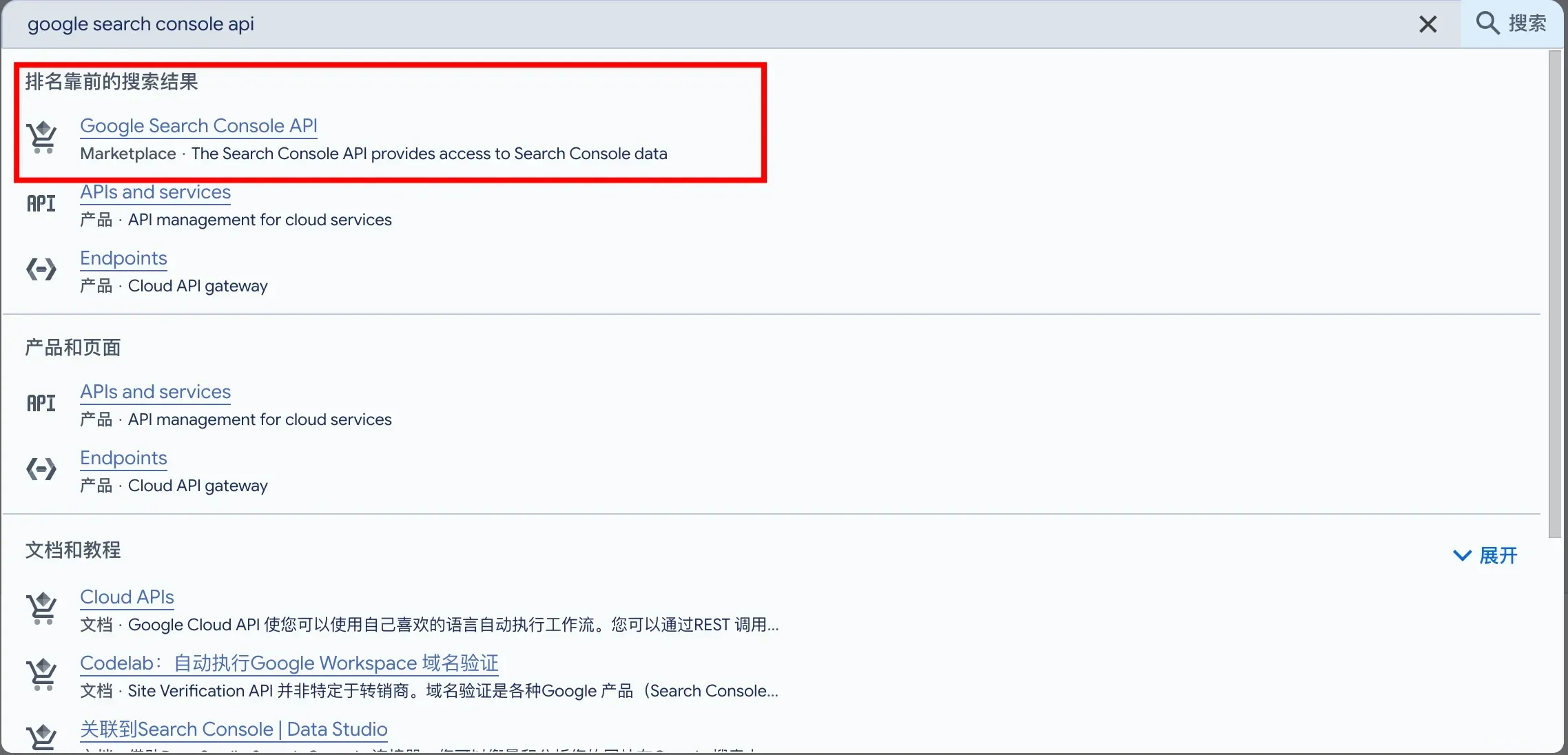
- Search for Google Search Console API and enable it
- Go to APIs & Services → Credentials
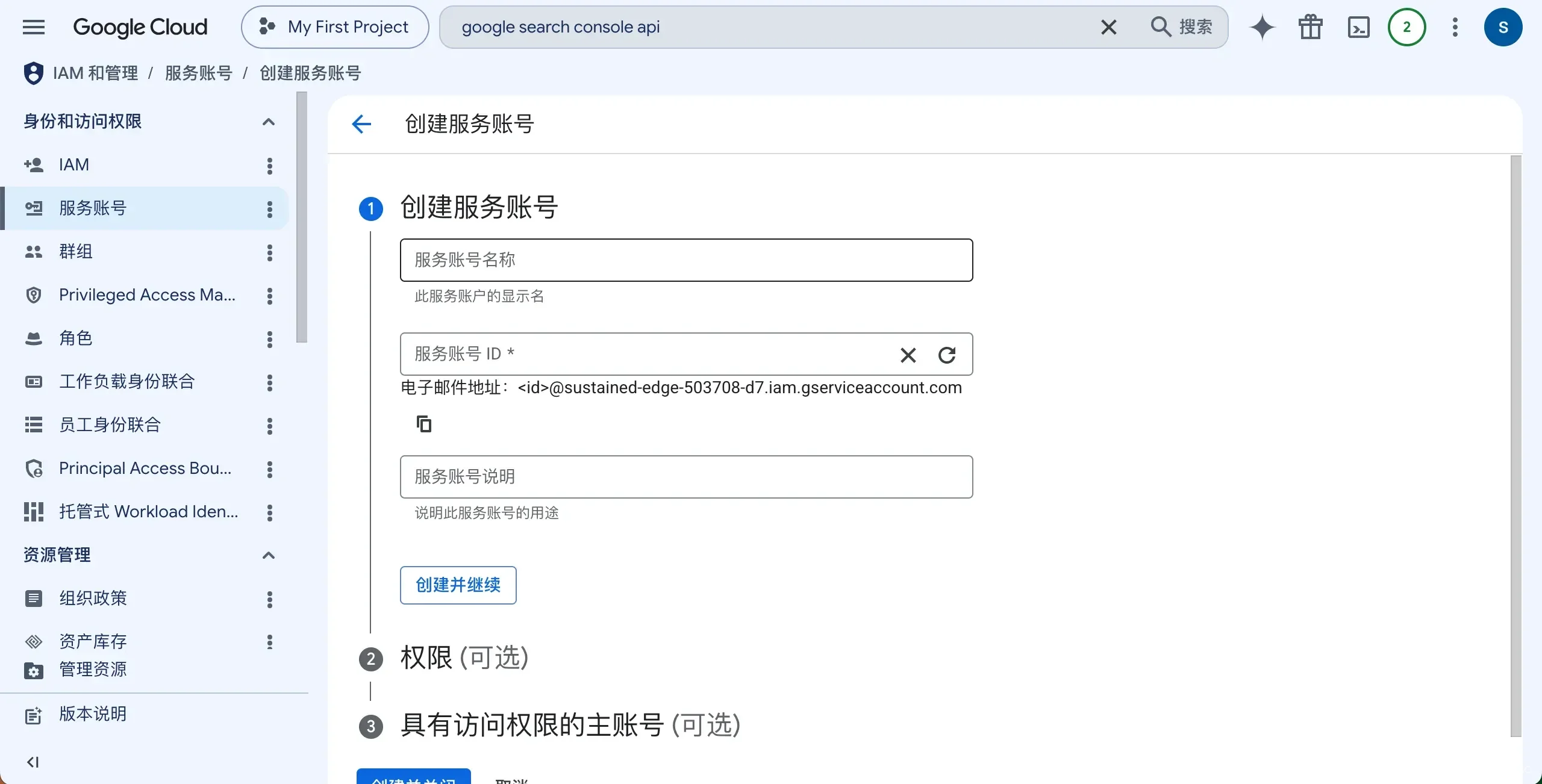
- Click Create Credentials → Service Account
- Fill in a name (e.g.,
gsc-data-puller), click Create and Continue
- Skip the optional steps, click Done
- Click on the newly created service account → Keys tab → Add Key → Create new key
- Choose JSON format → download the key file
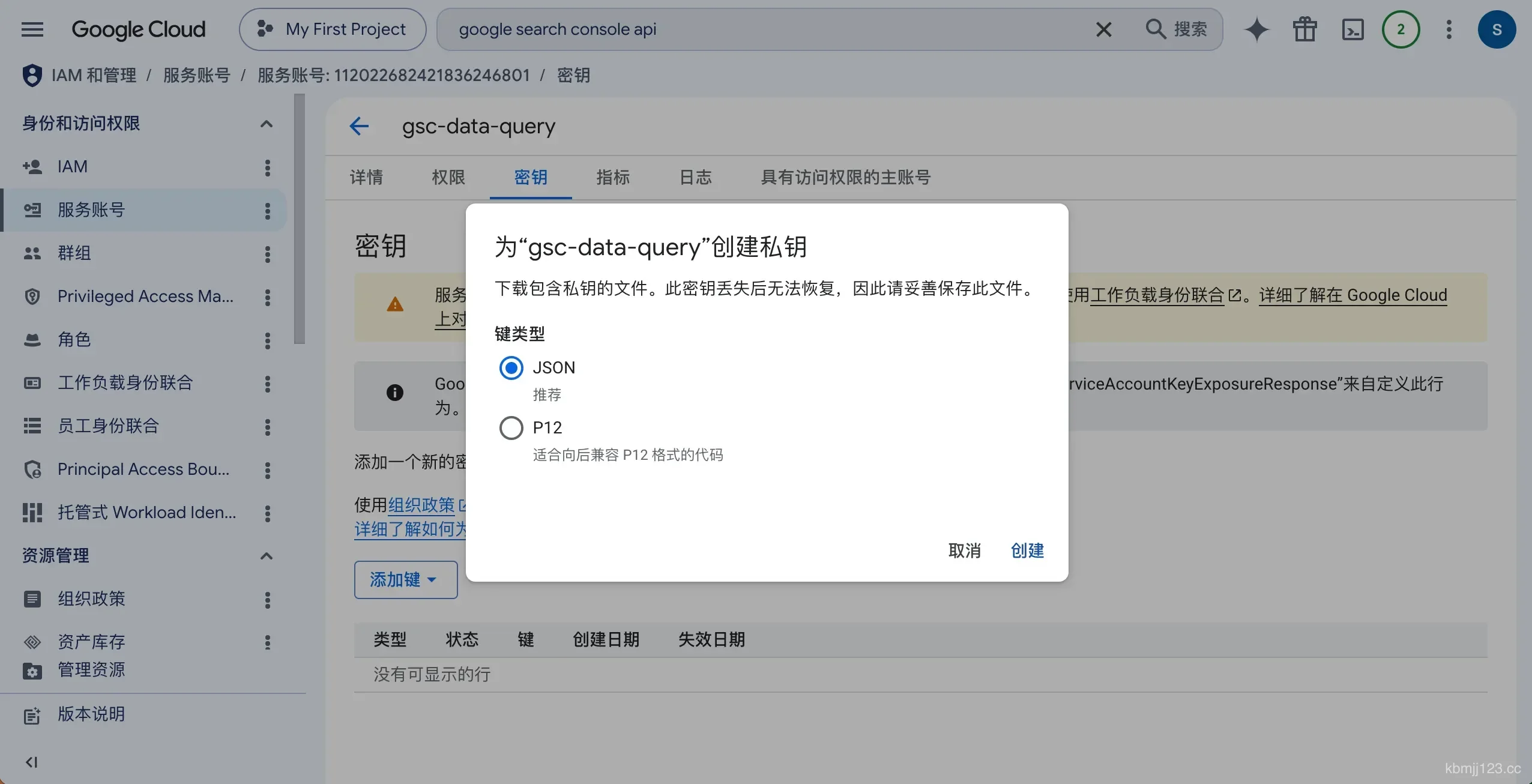
Save this file somewhere secure. I put mine at .claude/credentials/gsc-service-account.json (gitignored).
The JSON file looks like this:
{
  "type": "service_account",
  "project_id": "your-project",
  "private_key_id": "...",
  "private_key": "-----BEGIN PRIVATE KEY-----\n...\n-----END PRIVATE KEY-----\n",
  "client_email": "gsc-data-puller@your-project.iam.gserviceaccount.com",
  "client_id": "...",
  "auth_uri": "https://accounts.google.com/o/oauth2/auth",
  "token_uri": "https://oauth2.googleapis.com/token"
}
The two fields we need: client_email and private_key.
Step 2: Authorize in Google Search Console
- Open Google Search Console
- Select your site
- Go to Settings → Users and permissions
- Click Add user
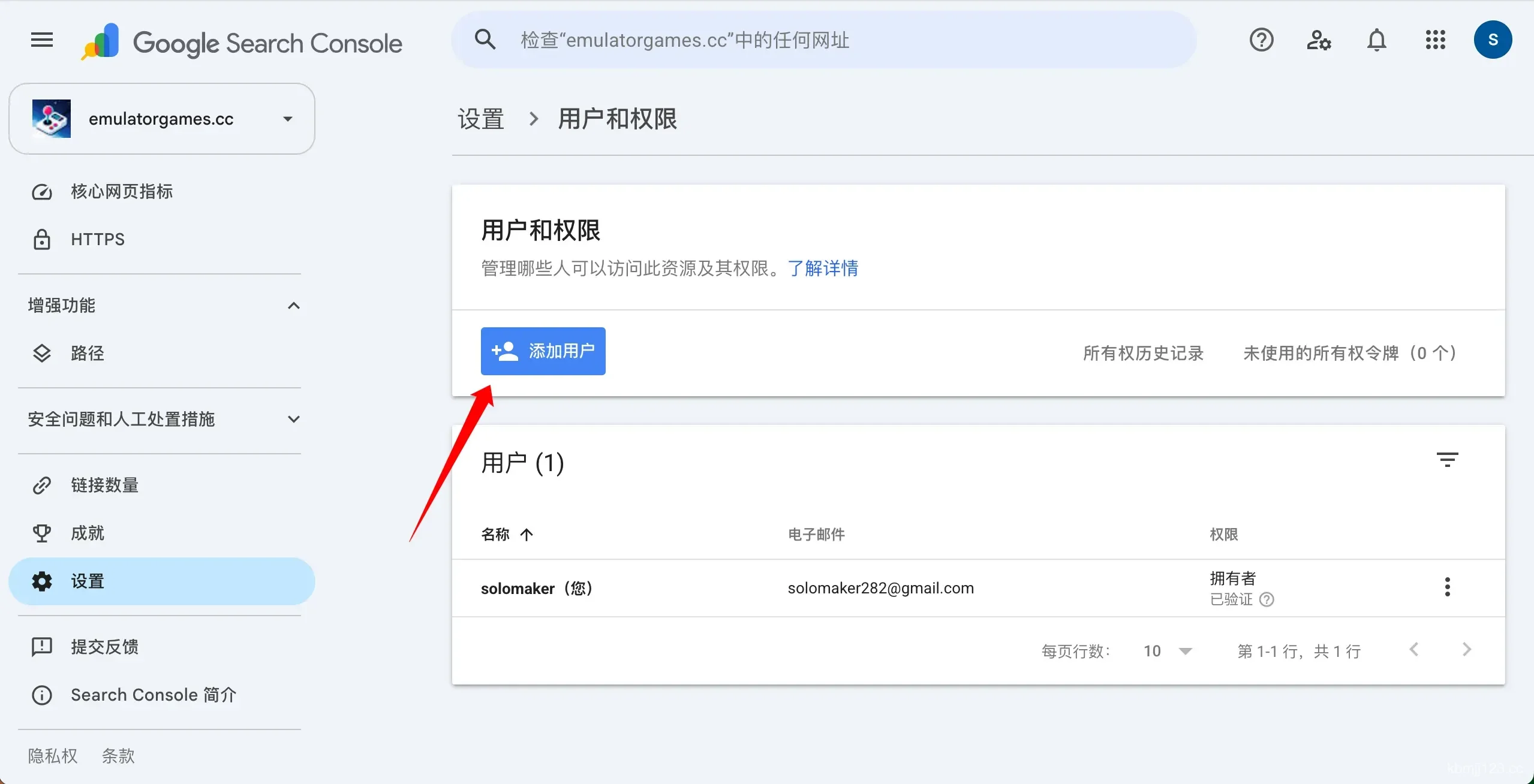
- Enter the service account email (from the JSON file)
- Set permission to Restricted
- Click Add
That's it. The service account can now read your GSC data.
Important: If your GSC property is a domain property (like
sc-domain:example.com), you must use thesc-domain:prefix in API calls — nothttps://example.com. This cost me an hour of debugging with a403 Forbiddenerror.
Step 3: JWT Authentication (Zero Dependencies)
Here's where it gets interesting. Most tutorials install googleapis:
npm install googleapis # 50MB+ of dependencies
I didn't want that. My script runs in a constrained environment, and I only need one API call. So I implemented JWT authentication using only Node.js built-ins.
How JWT Auth Works
- Create a JWT (JSON Web Token) signed with the service account's private key
- Exchange the JWT for an access token via Google's token endpoint
- Use the access token in API requests
The Code
const crypto = require('crypto');
const { execSync } = require('child_process');

function base64url(data) {
  return Buffer.from(typeof data === 'string' ? data : JSON.stringify(data))
    .toString('base64')
    .replace(/=/g, '')
    .replace(/\+/g, '-')
    .replace(/\//g, '_');
}

function signJWT(privateKey, header, payload) {
  const signingInput = `${base64url(header)}.${base64url(payload)}`;
  const sign = crypto.createSign('RSA-SHA256');
  sign.update(signingInput);
  return sign.sign(privateKey, 'base64')
    .replace(/=/g, '')
    .replace(/\+/g, '-')
    .replace(/\//g, '_');
}

function getAccessToken(credentials) {
  const now = Math.floor(Date.now() / 1000);

  const header = { alg: 'RS256', typ: 'JWT' };
  const payload = {
    iss: credentials.client_email,
    scope: 'https://www.googleapis.com/auth/webmasters.readonly',
    aud: 'https://oauth2.googleapis.com/token',
    iat: now,
    exp: now + 3600,  // Token valid for 1 hour
  };

  const jwt = `${base64url(header)}.${base64url(payload)}.${signJWT(credentials.private_key, header, payload)}`;

  // Exchange JWT for access token
  const result = execSync(
    `curl -s -X POST https://oauth2.googleapis.com/token ` +
    `-H "Content-Type: application/x-www-form-urlencoded" ` +
    `-d "grant_type=urn:ietf:params:oauth:grant-type:jwt-bearer&assertion=${jwt}"`,
    { encoding: 'utf-8' }
  );

  const data = JSON.parse(result);
  if (!data.access_token) {
    throw new Error(`Token exchange failed: ${JSON.stringify(data)}`);
  }

  return data.access_token;
}
Why curl instead of fetch? In some environments (Cloudflare Workers, certain Node.js versions, restricted sandboxes), fetch is either unavailable or behaves differently. curl works everywhere. For a script that runs on a server, this is the most portable approach.
Step 4: Query the Search Analytics API
The GSC Search Analytics API lets you query impressions, clicks, CTR, and position data. Two useful query types:
- By page: which URLs are getting impressions
- By query + page: which search terms are driving traffic to which URLs
The Query Function
const path = require('path');
const os = require('os');
const fs = require('fs');

const GSC_API_BASE = 'https://www.googleapis.com/webmasters/v3';

function curlPost(url, headers, body) {
  const headerFlags = Object.entries(headers)
    .map(([k, v]) => `-H "${k}: ${v}"`)
    .join(' ');

  // Write body to temp file to avoid shell escaping issues
  const tmpFile = path.join(os.tmpdir(), `gsc-${Date.now()}.json`);
  fs.writeFileSync(tmpFile, JSON.stringify(body));

  try {
    const result = execSync(
      `curl -s -X POST "${url}" ${headerFlags} -d @${tmpFile}`,
      { encoding: 'utf8', timeout: 30000 }
    );
    return JSON.parse(result);
  } finally {
    try { fs.unlinkSync(tmpFile); } catch (e) {}
  }
}

function gscQuery(accessToken, siteUrl, body) {
  const encodedSite = encodeURIComponent(siteUrl);
  const url = `${GSC_API_BASE}/sites/${encodedSite}/searchAnalytics/query`;

  return curlPost(url, {
    'Authorization': `Bearer ${accessToken}`,
    'Content-Type': 'application/json',
  }, body);
}
Example: Get Page-Level Data
const accessToken = getAccessToken(credentials);

const pageData = gscQuery(accessToken, 'sc-domain:kbmjj123.cc', {
  startDate: '2026-06-26',
  endDate: '2026-07-23',
  dimensions: ['page'],
  rowLimit: 500,
});

console.log(pageData.rows);
// [
//   { keys: ["https://kbmjj123.cc/self-hosting-umami-part-1"],
//     clicks: 0, impressions: 28, ctr: 0, position: 28.0 },
//   { keys: ["https://kbmjj123.cc/fixing-adsense-responsive-mobile-square"],
//     clicks: 0, impressions: 25, ctr: 0, position: 22.4 },
//   ...
// ]
Example: Get Query-Level Data
const queryData = gscQuery(accessToken, 'sc-domain:kbmjj123.cc', {
  startDate: '2026-06-26',
  endDate: '2026-07-23',
  dimensions: ['query', 'page'],
  rowLimit: 5000,
});

console.log(queryData.rows);
// [
//   { keys: ["umami cloud", "https://kbmjj123.cc/self-hosting-umami-part-1"],
//     clicks: 0, impressions: 15, ctr: 0, position: 25.3 },
//   ...
// ]
Step 5: Build the Full Script
Putting it all together — a script that:
- Authenticates via service account
- Pulls page-level and query-level data for the current period
- Pulls the previous period for comparison
- Calculates trends (improving / declining / new)
- Writes everything to a JSON file
// scripts/gsc-pull.cjs
const fs = require('fs');
const path = require('path');

const SERVICE_ACCOUNT_PATH = path.join(__dirname, '../.claude/credentials/gsc-service-account.json');
const OUTPUT_PATH = path.join(__dirname, '../content/.gsc-performance.json');
const SITE_URL = 'sc-domain:kbmjj123.cc';

function main() {
  // 1. Load credentials
  const credentials = JSON.parse(fs.readFileSync(SERVICE_ACCOUNT_PATH, 'utf8'));
  const accessToken = getAccessToken(credentials);

  // 2. Date ranges
  const endDate = new Date();
  endDate.setDate(endDate.getDate() - 3); // GSC data has 3-day delay
  const startDate = new Date();
  startDate.setDate(startDate.getDate() - 30);

  const start = startDate.toISOString().split('T')[0];
  const end = endDate.toISOString().split('T')[0];

  // 3. Pull page-level data
  const pageData = gscQuery(accessToken, SITE_URL, {
    startDate: start,
    endDate: end,
    dimensions: ['page'],
    rowLimit: 500,
  });

  // 4. Pull query-level data
  const queryData = gscQuery(accessToken, SITE_URL, {
    startDate: start,
    endDate: end,
    dimensions: ['query', 'page'],
    rowLimit: 5000,
  });

  // 5. Process and merge
  const pages = {};
  for (const row of (pageData.rows || [])) {
    const pagePath = new URL(row.keys[0]).pathname;
    pages[pagePath] = {
      impressions: row.impressions,
      clicks: row.clicks,
      ctr: Math.round(row.ctr * 10000) / 100,
      avgPosition: Math.round(row.position * 10) / 10,
      topQueries: [],
    };
  }

  for (const row of (queryData.rows || [])) {
    const pagePath = new URL(row.keys[1]).pathname;
    if (pages[pagePath]) {
      pages[pagePath].topQueries.push({
        query: row.keys[0],
        impressions: row.impressions,
        clicks: row.clicks,
        position: Math.round(row.position * 10) / 10,
      });
    }
  }

  // 6. Write output
  const output = {
    lastPulled: new Date().toISOString().split('T')[0],
    siteUrl: SITE_URL,
    period: { start, end },
    pages,
  };

  fs.writeFileSync(OUTPUT_PATH, JSON.stringify(output, null, 2));
  console.log(`✅ Written to ${OUTPUT_PATH}`);
  console.log(`   ${Object.keys(pages).length} pages`);
}

main();
Run it:
node scripts/gsc-pull.cjs
Output:
🔑 Authenticating as: gsc-data-puller@your-project.iam.gserviceaccount.com
✅ Authenticated
📅 Current period: 2026-06-26 → 2026-07-23

📊 Fetching page-level data...
   Found 13 pages

📊 Fetching query-level data...
   Found 4 query-page combinations

✅ Written to content/.gsc-performance.json
   11 pages, 0 improved, 4 declined, 7 new
Bugs I Hit (So You Don't Have To)
Bug 1: sc-domain: vs https://
Symptom: 403 Forbidden — User does not have sufficient permission for site
Cause: My GSC property was a domain property (sc-domain:kbmjj123.cc), but I was passing https://kbmjj123.cc to the API.
Fix: Domain properties require the sc-domain: prefix:
// ❌ Wrong
const SITE_URL = 'https://kbmjj123.cc';

// ✅ Correct
const SITE_URL = 'sc-domain:kbmjj123.cc';
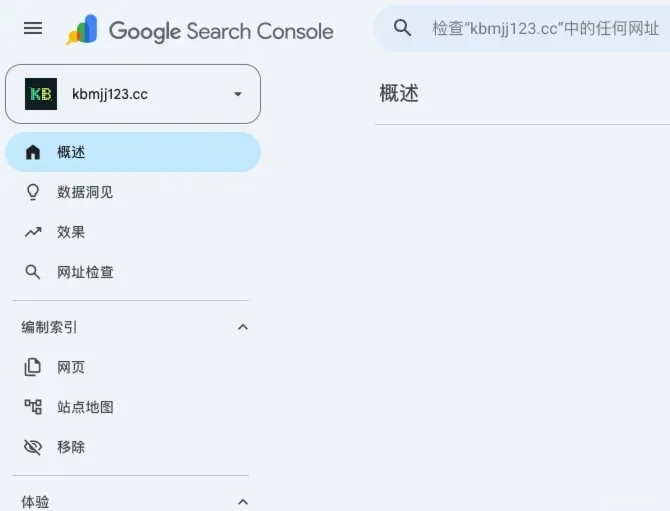
You can check your property type in GSC — the URL in the dropdown shows either sc-domain: or https://.
Bug 2: JSON Body Escaping in Shell
Symptom: API returned empty results or parse errors
Cause: Passing JSON as a string argument to curl in a shell command breaks when the JSON contains nested quotes:
// ❌ Breaks with nested quotes
execSync(`curl ... -d '${JSON.stringify(body)}'`);
Fix: Write the body to a temp file and use -d @file:
// ✅ Works
const tmpFile = path.join(os.tmpdir(), `gsc-${Date.now()}.json`);
fs.writeFileSync(tmpFile, JSON.stringify(body));
execSync(`curl ... -d @${tmpFile}`);
Bug 3: fetch Silently Failing
Symptom: fetch returned empty responses or hung in certain environments
Cause: Some Node.js environments (especially Cloudflare Workers or sandboxed processes) have fetch restrictions that aren't always obvious.
Fix: Use curl via execSync. It's more verbose but works everywhere:
const result = execSync(`curl -s -X POST "${url}" ...`, { encoding: 'utf-8' });
Bug 4: Date Must Be at Least 3 Days Ago
Symptom: API returned empty results even though GSC UI showed data
Cause: The GSC API has a ~3-day data delay. Querying today's date or yesterday returns nothing.
Fix:
const endDate = new Date();
endDate.setDate(endDate.getDate() - 3); // Always query at least 3 days back
API Limits and Cost
| Item | Value |
|---|---|
| Cost | Free |
| Daily query limit | 2,000 requests per property |
| QPS limit | 200 queries per second |
| Data retention | 16 months |
| Data delay | ~3 days |
| Row limit per query | 25,000 |
For a blog pulling data weekly, you'll never hit these limits. The 2,000 daily queries is generous — my script makes 3 calls per run.
What To Do With the Data
Now that you have structured GSC data, here are things you can build. (I actually discovered a 68,000-impression blind spot in my own data using similar analysis.)
1. Trend Detection
Compare current period vs previous period. Flag articles with significant changes:
// Compare two periods
const current = gscQuery(accessToken, SITE_URL, { startDate: start1, endDate: end1, dimensions: ['page'], rowLimit: 500 });
const previous = gscQuery(accessToken, SITE_URL, { startDate: start2, endDate: end2, dimensions: ['page'], rowLimit: 500 });

// Find articles with >50% impression change
for (const page of current.rows) {
  const prev = previous.rows.find(p => p.keys[0] === page.keys[0]);
  if (prev) {
    const change = (page.impressions - prev.impressions) / prev.impressions;
    if (Math.abs(change) > 0.5) {
      console.log(`${page.keys[0]}: ${change > 0 ? '📈' : '📉'} ${Math.round(change * 100)}%`);
    }
  }
}
2. Content Gap Analysis
Find queries you rank for (position 5-20) but haven't written dedicated content for:
const gaps = queryData.rows.filter(row =>
  row.position >= 5 && row.position <= 20 && row.impressions >= 10
);
// These are topics where you're on page 1-2 but could do better
3. Automated Reports
Schedule the script to run weekly and send a summary (email, Telegram, Slack):
# Cron: every Monday at 9am
0 9 * * 1 node /path/to/scripts/gsc-pull.cjs
Full Script
The complete script is available in this repository at scripts/gsc-pull.cjs. It includes:
- Service account JWT authentication
- Page-level and query-level data pulling
- Previous period comparison and trend calculation
- JSON output with structured data
- Error handling and logging
Clone it, add your service account credentials, and run:
git clone https://github.com/kbmjj123/kbmjj123.cc.git
cd kbmjj123.cc
# Add your credentials to .claude/credentials/gsc-service-account.json
node scripts/gsc-pull.cjs
Summary: the five steps, and where the time actually goes
| Step | What | Time |
|---|---|---|
| Create service account | Google Cloud Console | 5 min |
| Authorize in GSC | Add email as Restricted user | 1 min |
| JWT auth code | crypto + curl, ~50 lines | Copy from this post |
| Query API | searchAnalytics/query endpoint | Copy from this post |
| Full script | gsc-pull.cjs, ~300 lines | Clone from repo |
No googleapis dependency. No OAuth flow. No browser interaction. Just a JSON key file and curl.
The data is yours — now go build something with it.
Frequently asked questions
Do I need the googleapis package to call the GSC API?
No. The API is plain HTTP, and authentication can be done with a signed JWT built from a service account key. That removes a large dependency tree for what is a handful of requests.
Should I use OAuth or a service account? A service account, for anything automated. OAuth requires a browser consent flow and refresh handling, which is unnecessary when the script runs unattended on your own property.
Why does my GSC API call return 403? Most often the service account has not been added as a user of the property in Search Console. Creating the account in Google Cloud is not enough; it also has to be authorized on the site.
What are the limits on the Search Analytics API? Google publishes quotas on requests per day and per minute, and the data itself is delayed by a couple of days. Both matter if you are pulling data on a schedule rather than by hand.